

If you receive a Sucuri Access Denied message, such as the one below, when visiting pages on your site, you can allow the URL in the Sucuri Firewall settings to avoid the blocks for all users.
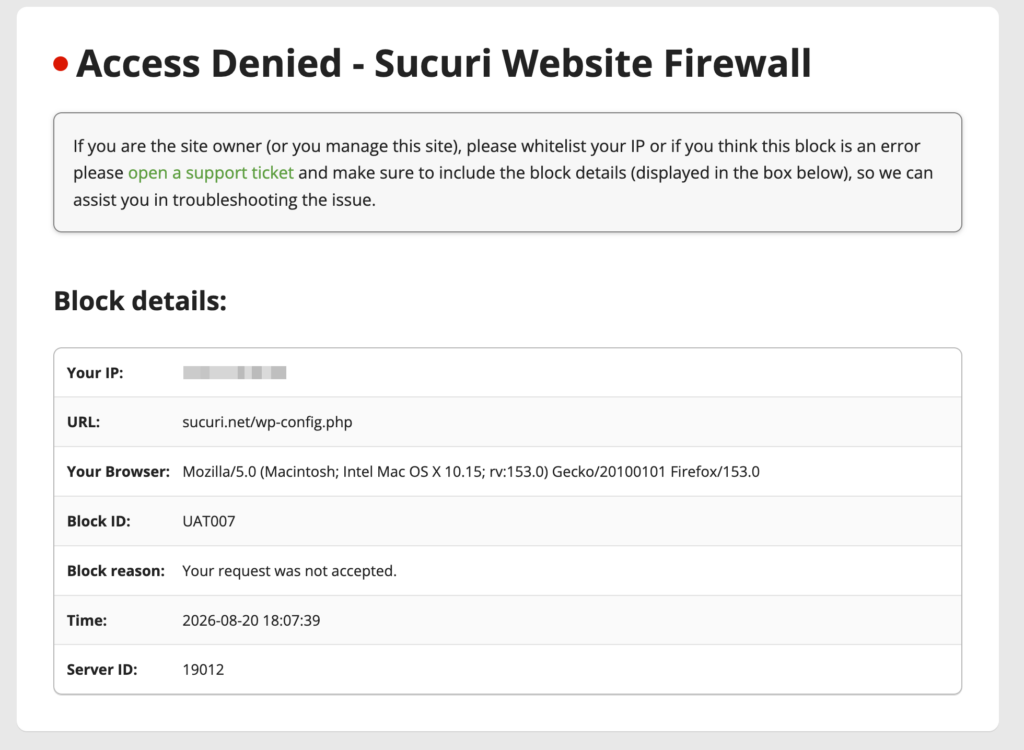
Allowing a URL should be your last resort. It is only acceptable to allow a URL if it needs to be accessible for all of your visitors and there are no other workarounds. If the block occurs in the admin area of your site, it is better to Allow your IP address instead.
How to Allow a URL
- Click here, under the Allow URL Paths section for your selected site, you will be able to allow the URL that was blocked.
- If you add
/wp-content/yourplugin/somefile.php, that specific URL will be allowed.

Additionally, you can choose how the block will be interpreted on the path that you allow.
Matches – If the specified string appears anywhere within the request path, the request is allowlisted.
Begins with– Covers the specified path and everything after it.
Ends with– Matches any URL path that terminates with the specified string.
Equals– Only the exact path entered will be allowlisted; subdirectories, parent directories, or variations will not match.
Keep in mind that allowing a URL must be considered a temporary solution. You should investigate why that path is being blocked and find a workaround. We cannot disclose the firewall filter’s logic, but you can read more about signature blocks here and about Secure Coding Practices on the OWASP website.
Allow a URL Using the Audit Trails
- Click here to go to the Audit Trails page and select the URL that was blocked.

- Under the Resource Path section, select Allow.
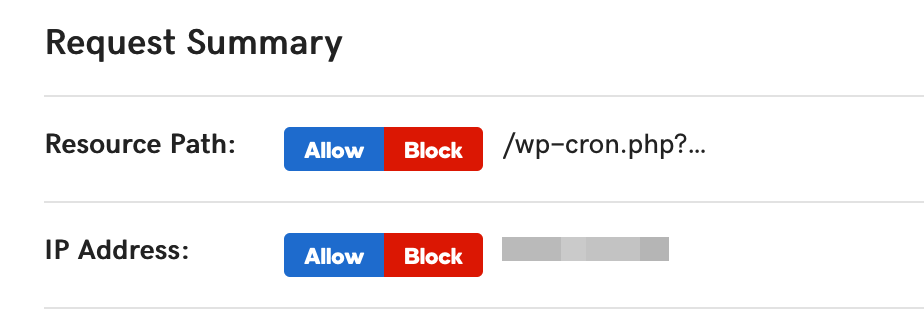
That’s it!
Note
Allowing a URL path will not bypass BLACK02 signature blocks or JavaScript challenges.