

When an application malfunctions, crashes, or delays, you may see the following message:
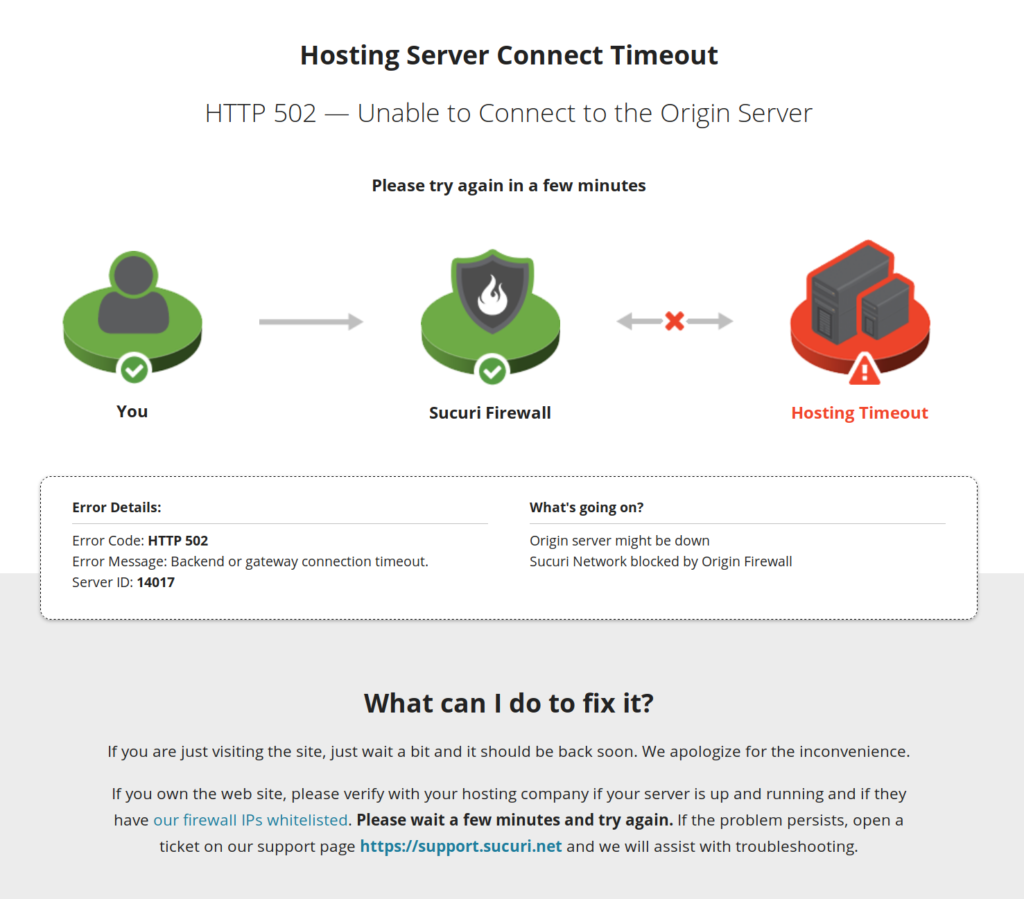
The image depicts a 502 error in which case the Sucuri WAF cannot get a response from the site’s hosting server. To resolve this issue, please read through the list of common causes below and follow the instructions.
Server Health
Contact your hosting provider or system administrator to make sure the server is not overloaded or if the hosting IP address has changed.
If you are managing your own server or want to be sure that the analysis you received is accurate, retrieve the following from the server: server usage statistics, internal logs from the past few hours, and access and errors logs, including those generated by the operating system itself.
Sucuri’s support team is unable to assist with hosting server troubleshooting. Most of the time the issue is due to: resource shortage, broken software update, or a security block. Compare the 50x access log timestamps (if any) with the error logs of the operating system and web server. Any suspicious errors in the server logs will provide valuable information as to why the 50x errors are occurring.
If the hosting IP address has changed, please reference this article.
Blocks due to Security Software
Sucuri WAF is based on reverse proxy technology which allows us to inspect every network packet sent to your website and stop malicious requests from reaching your hosting server. However, at the network level, your hosting server will see that all of the traffic is coming from just a few IP addresses related to the Sucuri Firewall points of presence (PoPs).
For security software running on the hosting server, this may seem like an attack because the traffic volume is concentrated to a dozen IP addresses belonging to the Sucuri firewall. If your traffic isn’t being filtered through the Sucuri PoPs first, we recommend setting up firewall bypass prevention rules to prevent anyone from accessing your website without the firewall filtering the requests first.
To avoid blocks to the firewall IP addresses due to security software enabled on the hosting server, please contact your hosting provider or system administrator and ask them to allow our IP addresses:
192.88.134.0/23
185.93.228.0/22
66.248.200.0/22
208.109.0.0/22
2a02:fe80::/29
If you manage your own server, check which security software is running on your server and check their documentation for instructions on how to allow IP addresses. The most common software used are: mod_security, fail2ban, iptables, Imunify360, or even security plugins running on your CMS, such as WordFence.
The firewall IP ranges are proprietary and rarely change. If they do change in the future, we will notify you by email in advance.
Response Timeout
To protect your website against a few types of DDoS attacks, Sucuri WAF has a timeout of 60 seconds. From our experience, this is more than enough time for a regular application to respond and should not cause any issues under normal circumstances.
If the application takes more than 60 seconds to respond, the WAF will serve a 504 error message. This is likely an application malfunction that needs to be investigated by the development team.
Unfortunately, it is not currently possible to customize the response timeout, but there are some workarounds that may be helpful in resolving this issue:
- Optimize your database
Most database engines have built-in optimizing functions that reorganizes the data, reducing space and improving I/O efficiency. We recommend checking with your hosting provider or system administrator to learn how to do this procedure correctly in your database engine.
If you are running a popular CMS such as WordPress, Drupal or similar, chances are you’re running MySQL/MariaDB database and you will likely find a software called phpMyAdmin or Adminer on your hosting panel that can assist with optimization. Remember to backup all of your data prior to this type of work.
- Fractionate the process
If the timeout occurs only when performing long or resource-intensive operations such as product import/export, bulk edits, etc., consider splitting the process into smaller processes.
This should alleviate the load on the server and allow the operation to run smoothly.
- Control the output
Programming languages usually have functions to control the output of a request, either to buffer, so it’s served as a single part (Output Buffering), or to send chunked responses (Streaming).
To avoid timeouts, you must change the application code to implement the Streaming technique. That way responses in fixed or variable length chunks are sent to the browser while the web server is still working on the request.
Be aware that this must be done by a professional and may require profound structural changes in the application. To understand more about HTTP Output Buffering and Streaming, we recommend reading this article.
- Bypass the WAF
Sometimes it may not be viable to split the process or change the code; therefore, your last option would be to bypass the WAF on the connection so that your request goes directly to the hosting server. This is described in this article.
Big HTTP Headers
In rare cases, your application may be sending giant HTTP headers (larger than 16 KB) and the request times out. The best way to investigate this possibility is by opening your browser’s Developer Tools and inspecting the size of the response headers.
Based on previous cases, the issue is usually due to the application using a lot of “Set-Cookies” headers for tracking purposes, or was repeatedly sending the same HTTP headers.
Line Too Long
If an HTTP response contains a single continuous line or data buffer that exceeds Apache’s default buffer limit, Apache terminates the response with a Line too long error. Because the hosting server abruptly drops the connection, the firewall cannot complete the request and a 502 error occurs.
This error is frequently triggered in WordPress environments when saving, editing, or updating pages or posts. You can verify this is the cause of the 502 error you’re experiencing in the Apache error logs.
To avoid this error, increase the maximum buffer line size by adding the following code block to the top of the site’s .htaccess file (always back up .htaccess first):
<IfModule mod_substitute.c>
SubstituteMaxLineLength 10M
</IfModule> If you have followed all the procedures specified in this article but your site is still unresponsive, please open a support ticket so we can assist.